


The first time I saw the 503 Service Unavailable message on my Hostinger site, I didn’t panic immediately.
I refreshed the page. Then again. Then I opened it on my phone. Same error.
At that moment, I knew this wasn’t one of those temporary glitches you ignore and it magically disappears. The worst part? That page was starting to rank on Google the same day. Traffic was coming in… and the site just died.
If you’re here trying to figure out how to fix Hostinger 503 error, I’ll save you time. This is not one of those “clear cache and restart server” guides. I tried all that first. It didn’t work.
What actually fixed it was understanding why the server was refusing requests in the first place.
The Part Most Tutorials Skip: What 503 Really Means on Hostinger
Most explanations stop at “server is temporarily unavailable.” That’s technically fine, but practically useless.
In real-world scenarios, especially on Hostinger shared hosting, a 503 error usually shows up when your account hits limits quietly in the background. The server doesn’t crash. It just starts rejecting requests.
When I checked my dashboard, nothing looked broken on the surface. But inside hPanel, resource usage told a completely different story.
CPU usage was spiking. Entry processes were hitting limits. And it wasn’t random.
It was happening in patterns. That’s where things started to make sense.
The Mistake That Cost Me an Hour
My first instinct was to “reset everything.” I restarted PHP, cleared cache, even disabled CDN temporarily. It felt like I was doing something productive, but in reality, I was just guessing.
Nothing changed.
Looking back, the mistake was obvious. I was treating the symptom instead of finding the cause. A 503 error is almost never fixed by refreshing or restarting alone. Something is actively consuming resources.
Until you find that thing, the error keeps coming back.
Where the Real Clue Was Hiding (And I Almost Missed It)
Inside Hostinger’s hPanel, there’s a section most people ignore: Resource Usage.
That’s where I found the first real clue.
Every time I refreshed the site or traffic came in, entry processes were maxing out. CPU usage wasn’t just high, it was peaking aggressively in short bursts.
That told me one thing clearly. Something in the backend was running repeatedly and aggressively.
So I started thinking differently. Instead of asking “how to fix the error,” I asked “what is overloading the server?”
The Actual Culprit: A Plugin That Looked Harmless
A few days earlier, I had installed a plugin to automate some background tasks. It wasn’t a shady plugin. It was actually quite popular.
But here’s what I didn’t notice at the time.
It was running cron jobs far too frequently. Not every hour. Not even every minute. Every few seconds.
On a high-resource server, that might not matter much. On shared hosting, it’s a disaster waiting to happen.
Since my wp-admin wasn’t even opening due to the 503 error, I had to disable it manually through File Manager. I went into the plugins directory and renamed the plugin folder.
The moment I refreshed the site, it loaded instantly. No delay. No partial fix. Completely back to normal. That was the turning point.
What Happened After the “Fix” (And Why It Wasn’t Enough)
At that point, I thought the problem was solved. Technically, the site was back.
But over the next day, I noticed something subtle. The site didn’t crash again, but performance still wasn’t stable. Occasional slow responses, slight spikes, nothing dramatic, but enough to tell me the system was still under pressure.
That’s when I realized something important. The plugin was the trigger, not the only problem.
The Second Layer: Background Activity Was Too High
WordPress, by default, runs a lot of background processes. This is where properly optimized WordPress hosting setups make a noticeable difference in how well your site handles background activity. Heartbeat API, scheduled tasks, plugin checks, all of it adds up.
On powerful hosting, you don’t notice. On limited plans, you feel every bit of it.
So I reduced unnecessary background activity. Instead of letting everything run at default frequency, I limited how often these processes execute.
The difference wasn’t dramatic visually, but when I checked resource usage again, CPU spikes had flattened significantly.
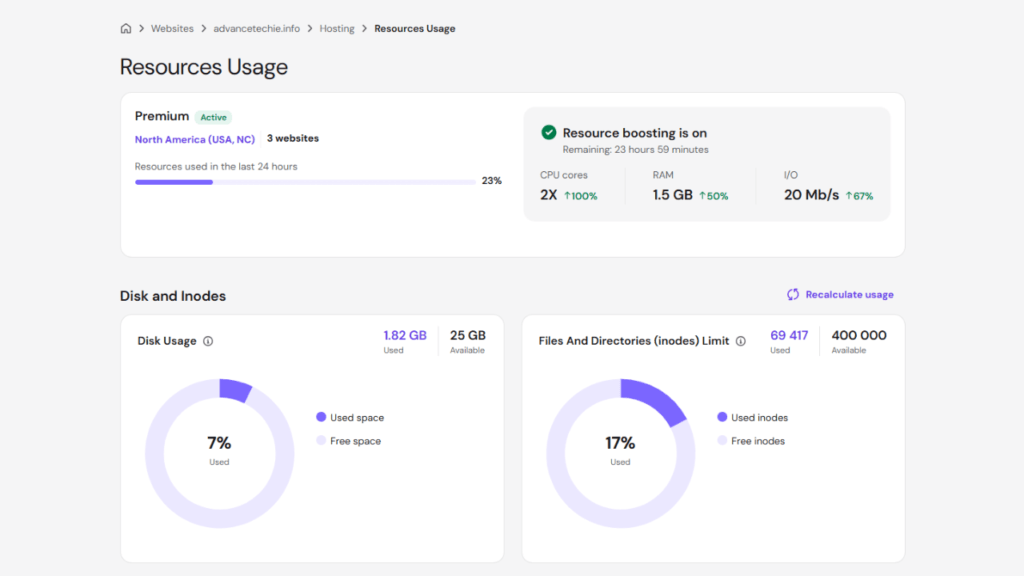
It felt like the server could finally breathe.
The Realization Most People Avoid: Hosting Limits Do Matter
Even after optimization, I noticed something uncomfortable.
The site was stable, but sitting too close to its limits. Any traffic spike could push it back into a 503 state.
This is where most people try to “optimize more.”
I considered that too. But honestly, I had already removed the obvious bottlenecks.
So I upgraded the hosting plan. At that point, I also started looking into a proper hosting comparison to understand whether it was just my setup or a limitation of shared hosting itself.
Not because I wanted to, but because it made sense.
After upgrading, the same site, same setup, suddenly felt effortless. No spikes, no instability, no hidden pressure.
That’s when it clicked.
Sometimes the issue isn’t bad configuration. It’s simply outgrowing your resources. A lot of beginner hosting options work fine early on, but once traffic grows, these limitations start showing up.
A Cleaner Look at What Actually Causes 503 on Hostinger
Instead of a generic checklist, here’s what I observed from real usage and testing:
| Situation I Faced | What I Saw in Dashboard | Root Cause | What Actually Fixed It |
|---|---|---|---|
| Site suddenly down during traffic | Entry processes maxed out | Background plugin overload | Disabled plugin manually |
| Site comes back but feels unstable | CPU spikes still visible | Too many background tasks | Reduced Heartbeat & cron frequency |
| Random slowdowns even after fixes | Usage near hosting limits | Resource ceiling too low | Upgraded hosting plan |
| Another site crashed instantly | No resource spike, instant 503 | Corrupt .htaccess | Reset to default file |
This is the kind of clarity I wish I had earlier. Every 503 looks the same on the surface, but the cause is almost always different.
A Small Case From Another Site (Completely Different Cause)
On a different project, I ran into the same 503 error again. This time I thought, “Okay, probably another plugin issue.”
But the pattern didn’t match.There were no CPU spikes. No process overload. The error appeared instantly after a small change.
Turned out, the .htaccess file was corrupted.
# BEGIN WordPress
<IfModule mod_rewrite.c>
RewriteEngine On
RewriteBase /
RewriteRule ^index\.php$ - [L]
RewriteCond %{REQUEST_FILENAME} !-f
RewriteCond %{REQUEST_FILENAME} !-d
RewriteRule . /index.php [L]
</IfModule>
# END WordPress
Replacing it with a clean default version fixed everything in seconds.Same error. Completely different cause.That’s why blindly following steps rarely works.
What I’d Do If This Happened Again (Much Faster This Time)
If I see a 503 error again on Hostinger, I wouldn’t waste time refreshing or guessing.
I’d go straight to resource usage and observe patterns. If usage spikes, it’s a backend process issue. If not, I’d check configuration files like .htaccess or database connection.
This shift alone saves hours. Honestly, once you start thinking this way, even debugging tools become far more effective because you’re solving the root cause instead of guessing.
Final Thought on How to Fix Hostinger 503 Error
If there’s one thing I learned from this experience, it’s this:
A 503 error is not the problem. It’s a signal.
Once you stop treating it like a quick fix issue and start treating it like a system behavior, everything becomes easier to diagnose.
So if you’re trying to figure out how to fix Hostinger 503 error, don’t just follow steps. Observe what your server is trying to tell you.
That’s where the real answer is.
Let’s Make This Useful for Others
If you’ve faced this issue, share what caused it in your case. Was it a plugin, traffic spike, or something unexpected?
Your experience might help someone avoid hours of frustration. Because fixing a crash is one thing.
Building a site that doesn’t crash again is where the real game starts.
FAQ: How to Fix Hostinger 503 Error
How to fix Hostinger 503 error quickly?
Check hPanel → Resource Usage first. If usage is high, disable heavy plugins or reduce background processes. If usage is normal, check .htaccess or database issues.
What should I do if wp-admin is not accessible due to 503 error?
Access your site via File Manager or FTP and rename the plugin folder inside:
public_html/wp-content/plugins/
This disables plugins and often restores access instantly.
Can a plugin cause a 503 error on Hostinger?
Yes. A single poorly optimized plugin can overload CPU or run excessive background tasks, causing the server to return a 503 error.
Is 503 error bad for SEO?
Occasional 503 errors are fine, but frequent downtime can affect rankings, crawling, and user experience.
Can .htaccess cause a 503 error?
Yes. A corrupted or misconfigured .htaccess file can trigger a 503 error. Replacing it with a default WordPress version often fixes the issue.